How to Use Quick Play in the Minecraft Launcher
Quick Play lets you skip menus and launch directly into your most recently played worlds from the launcher home screen. Here's everything you need to know.
What Is Quick Play?
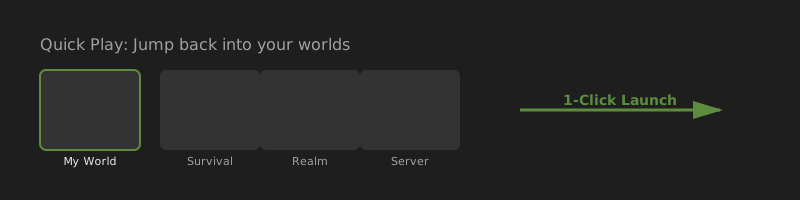
Quick Play is a launcher feature that displays shortcuts to worlds you've recently played. Instead of clicking Play, waiting for the main menu, and navigating to your world, you click the world thumbnail in the launcher and enter the game directly.
It supports:
- Single-player worlds
- Multiplayer servers you've joined
- Realms-hosted worlds
Version Requirements
Quick Play requires updated game versions:
- Java Edition: Version 1.20 or later
- Bedrock Edition: Version 1.20.60 or later
Worlds only appear after you've played them at least once on a supported version. Older worlds played before updating won't show until you launch them again post-update.
How Quick Play Works
- Update your game to a supported version via the launcher installations menu.
- Launch a world normally at least once (through Play → in-game world select).
- Close the game and return to the launcher: the world appears in the Quick Play bar.
- Click the world thumbnail to launch directly into it on your next session.
- Each new play session bumps that world to the front of the list.
Enable or Disable Quick Play
Quick Play is enabled by default. To change this:
- Open Minecraft Launcher.
- Click Settings in the lower-left corner.
- Scroll to the Quick Play section.
- Check or uncheck the box to enable/disable.
Disable Quick Play if you prefer seeing the main menu splash text, browsing the Marketplace, or choosing worlds manually each session.
Pinning Favorite Worlds
You can pin worlds to keep them at the front of Quick Play regardless of recent play order. Hover over a world in the Quick Play bar and look for the pin option. Pinned worlds stay accessible even as you play other worlds.
Quick Play vs. Installations
Quick Play remembers worlds, not installations. If you use multiple installations (e.g., modded Forge profile vs. vanilla), ensure you're on the correct installation before using Quick Play: the launcher launches the world with the installation that was active when you last played it.
Troubleshooting Quick Play
- World not showing: Play it once on Java 1.20+ or Bedrock 1.20.60+. Restart the launcher.
- Wrong world launches: Verify the correct installation is selected in the sidebar.
- Quick Play missing: Check Settings → Quick Play is enabled. Update launcher via Settings → About.
Read the official article: Quick Play on minecraft.net. For deeper coverage, see our Quick Play deep dive.